Element inspector
Select an element in the Model Browser or a view to open its inspector. The available sections depend on the element’s kind.
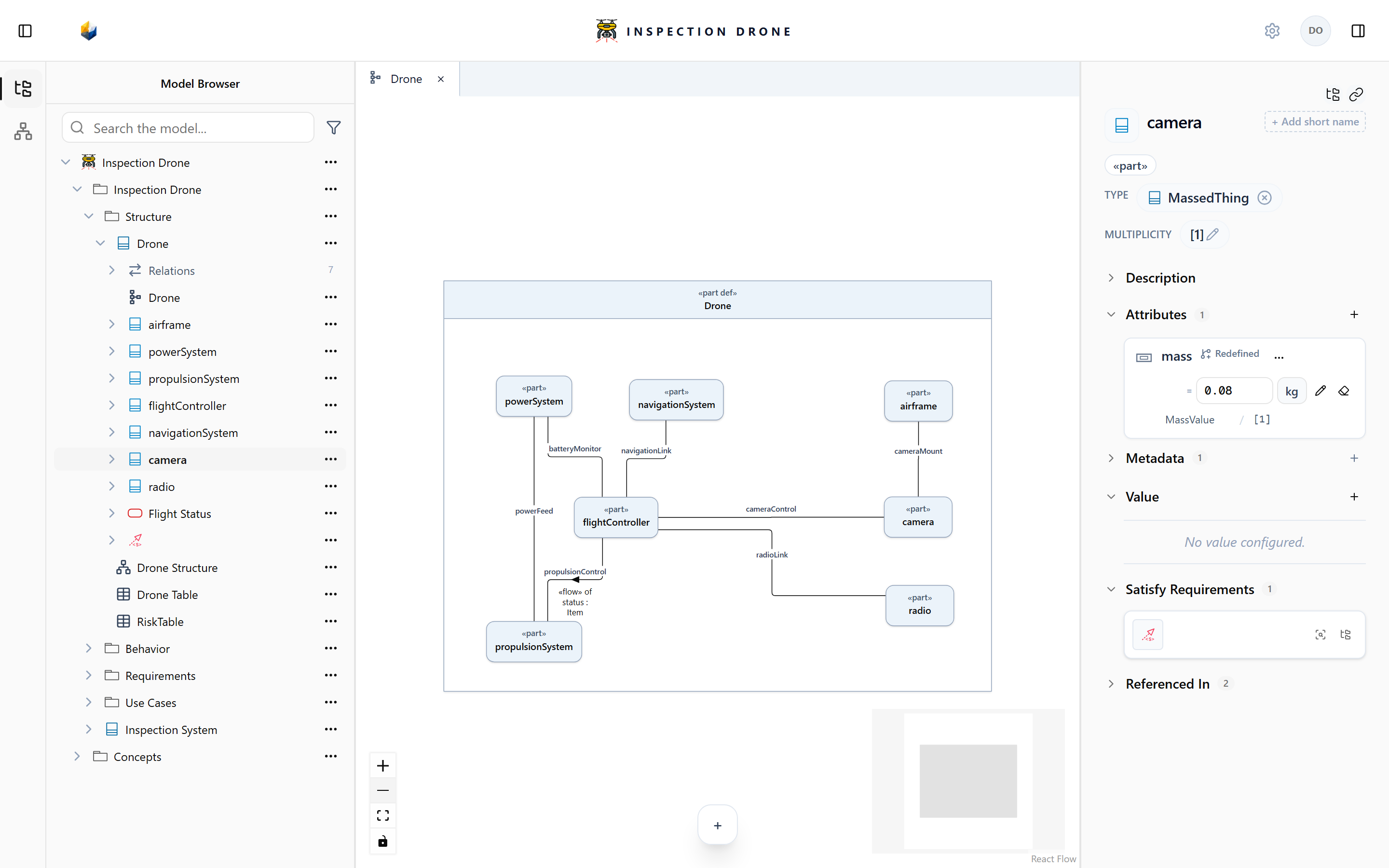
Assign a definition
For a usage without an assigned definition:
- Select the usage.
- Choose Set Definition.
- Search for and select a compatible definition from your model or available libraries.
Check: the inspector shows the selected definition. Removing that assignment does not delete the definition itself. Definition and usage explains how to prepare and assign one.
A definition’s Set Type control instead assigns a more general type to that definition.
Change the count
- Select the part whose multiplicity you want to change.
- Choose Edit multiplicity.
- Choose Exact count, enter the required count, and save.
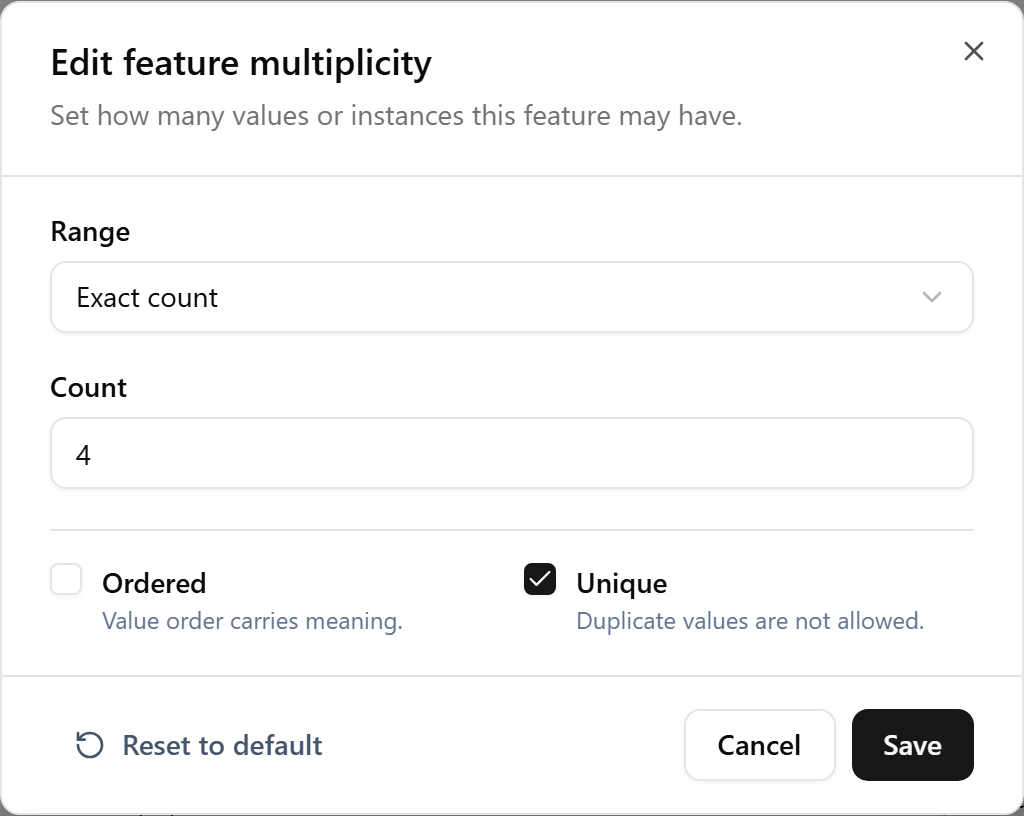
Check: the part’s multiplicity shows your saved count.
Edit attributes and documentation
Expand Attributes to review the selected element’s properties. Use the offered value and unit controls to edit an applicable attribute. Inherited values may require a local redefinition before you can assign an element-specific value.
Use Create attribute to add a property. Attributes and enumerations explains types, values, and named choices. Table attributes and units covers editing several elements together.
Use Description to add or edit element documentation.
Follow relationships
Referenced In and relationship sections help you find related elements. Select in model browser locates the current element in the tree; Copy link copies its workspace link.
Select a connection to inspect its endpoints and available Flows section. See Flows to prepare and configure a transfer.
If a section or edit action is missing, check the selected element’s kind and model editability. The inspector for a view, part, and relationship exposes different controls.