
Parts
A part describes a role in a system’s composition. Its owner identifies the context in which that role belongs.
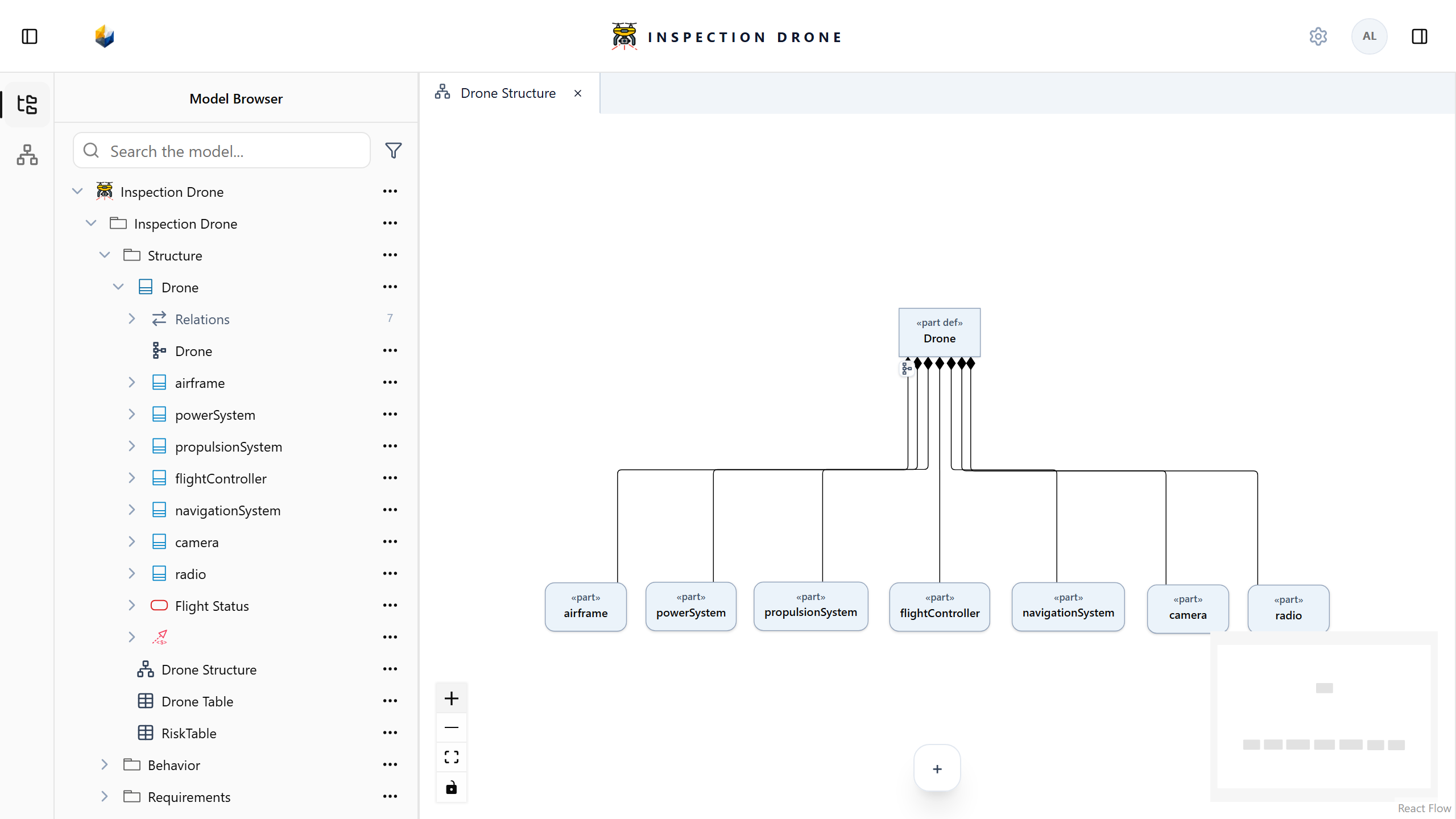
Add a part under the correct owner
- Select the system definition or part that should own the new component.
- Open its actions menu in the Model Browser.
- Choose Create Element → part.
- Enter a name describing the role and press Enter.
- Select the new part to inspect its properties.
Check: the part appears beneath the intended owner. If you need a reusable type, create and assign a definition.
If part is absent from the creation menu, check the selected owner’s kind and model editability.
Describe nested composition
To describe a subsystem’s internal parts, open that subsystem’s actions menu and create its parts there. Repeat for deeper nesting when the model needs it.
Check: expanding an owner reveals its direct members. Sibling parts appear at the same indentation level; nested parts appear beneath their own owner.
Set the count
- Select a part.
- Choose Edit multiplicity in the inspector.
- Choose Exact count, enter the required count, and save.
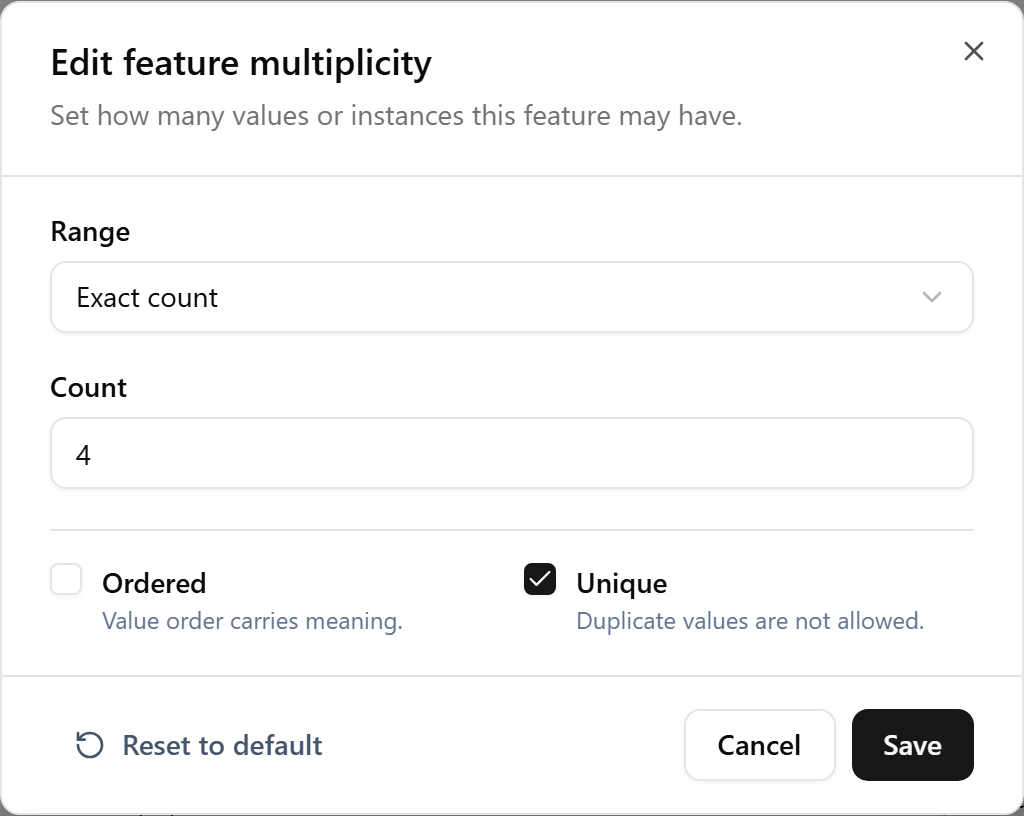
Check: the inspector shows the saved multiplicity.
Use distinct parts when their roles differ, and multiplicity when one named role represents several instances. A count does not assign a definition.
Continue with Ports for interaction points, or Diagrams for graphical presentations.

