Model Graph
The Model Graph explores model elements and relationships. Its layout is separate from Diagrams that you arrange manually.
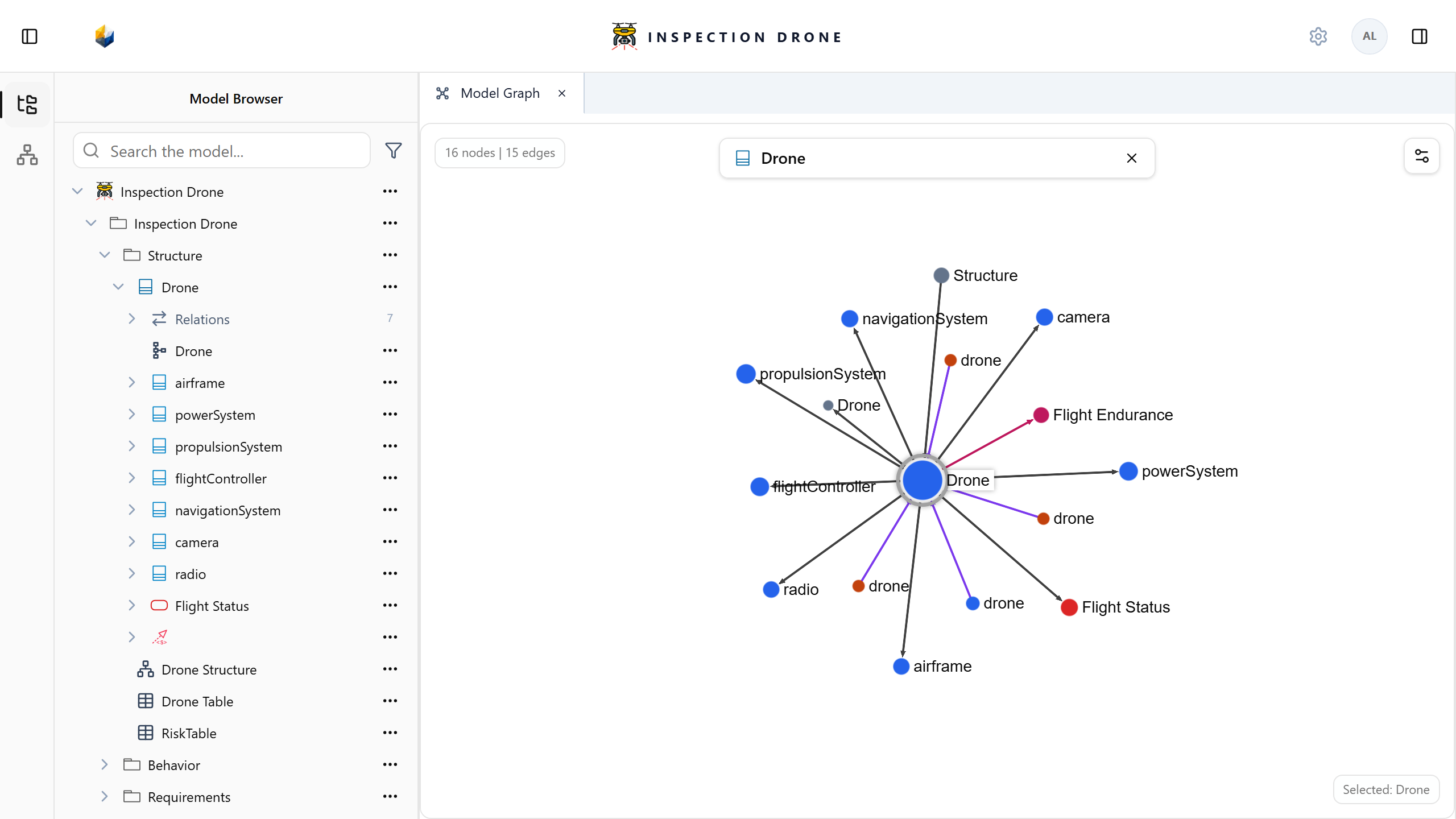
Open and search
Double-click the model-level entry at the top of the Model Browser, or choose Open Model Graph from its actions menu.
- Enter the name of an element in Search model graph.
- Select the intended result. Use its kind to distinguish similarly named elements.
- The selected element’s name replaces the search field.
- Use the cross beside that name to clear the selection and search again.
Check: the graph selection refers to the element you chose. You can inspect it and navigate to the corresponding Model Browser element.
Focus the neighborhood
Open Graph settings → Neighborhood. Use Depth to control how far relationships are followed, then choose Fit neighborhood.
Start with a small depth for nearby relationships and increase it to explore more distant connections. The visible neighborhood depends on your model’s actual relationships.
Filter and arrange
Use Graph settings → Filters to choose node kinds and relationship categories. Check these filters if an expected element is hidden.
In View and layout, use Reset camera, Pause layout, or Restart layout. Presentation controls can show connections, transitions, and satisfaction relationships as edges.
Open Legend for node colors and relationship styles. Drag empty canvas space to pan and use the mouse wheel to zoom.
Filters, camera, and layout controls change the graph presentation. Edit model content through the Model Browser, inspector, or an editable view.