Table metadata
Metadata columns show information attached to the elements represented by the rows. You can display whether a metadata definition is applied, select individual fields, and edit supported values directly from the table.
The Risk definition from SysML Metadata Library provides the concrete field names used below. It can be applied to elements in your own model.
What you need
Open an editable Tabular view containing the elements you want to annotate. The metadata definition must be available in your installation.
Add metadata columns
- Choose Add Column, then select Metadata.
- Find and expand the metadata definition you want to display.
- Expand a structured field with its arrow to reveal its children.
- Select a field to add a single column. To add several, choose Select multiple, check the fields, then choose Add … columns.
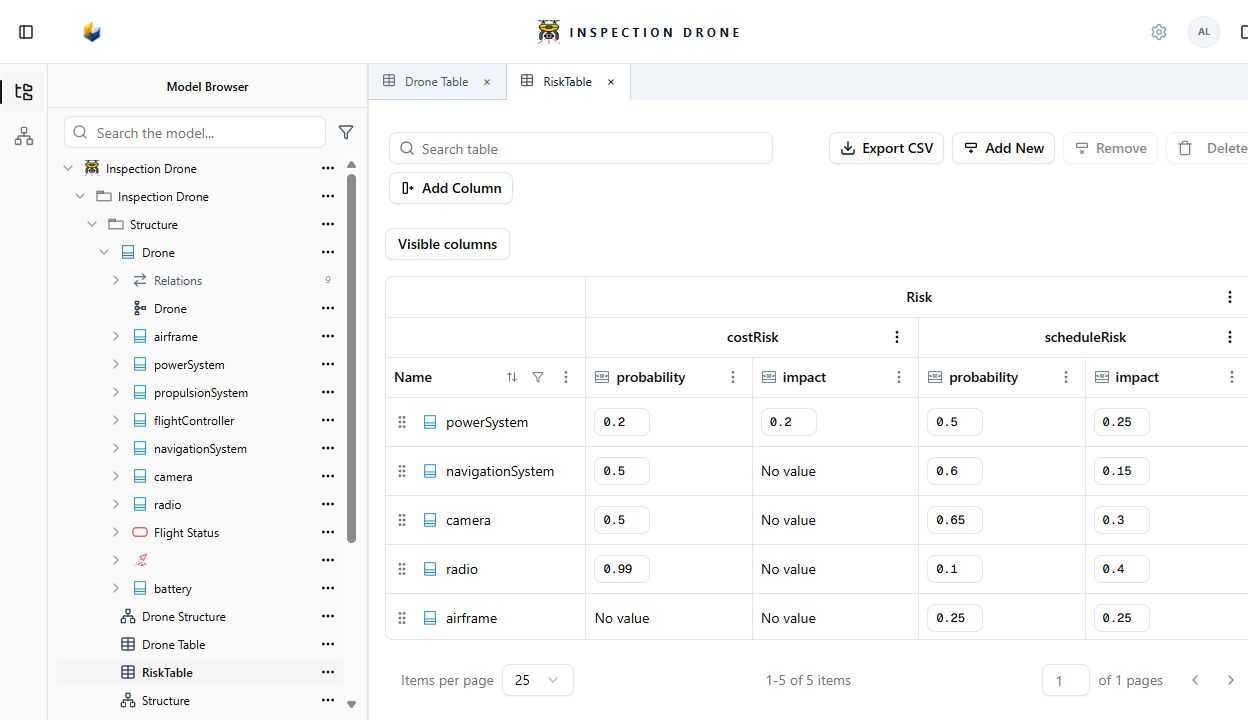
To display cost risk, use Risk → costRisk → probability and Risk → costRisk → impact. The same definition also offers scheduleRisk, technicalRisk, and totalRisk.
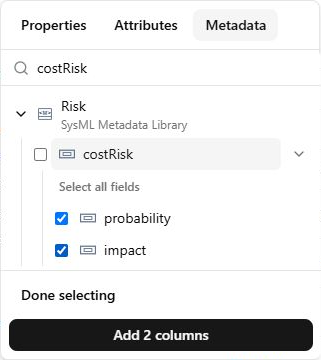
Check: the headers identify the selected paths. Group headings distinguish fields with the same name, such as probability under costRisk and probability under scheduleRisk.
For an application-status column, choose Add Column → Metadata, clear the search, expand the metadata definition, and select Applied.
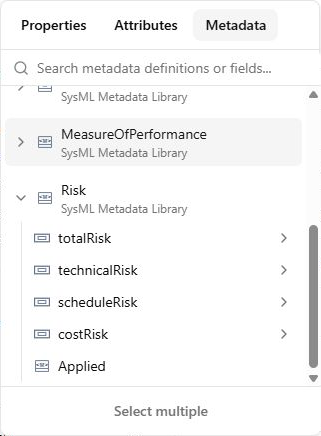
Adding columns changes the view; it does not apply metadata to the rows.
- Not applied: the element has no application of that metadata definition.
- No value: the application exists, but the selected field has not been set.
- Applied: an application exists; individual fields may still be unset.
Apply metadata from a table
For a numeric Risk field:
- Choose a row whose Risk cell shows Not applied.
- Double-click costRisk → probability, or use its Edit probability button.
- Enter the probability appropriate for that element and press Enter.
- Wait for the save. The first value creates the metadata application and the structure needed for that field.
- Edit costRisk → impact in the same way if you need to record it.
Check: the saved field displays your value. If present, the Applied column now shows Applied. Select the same element and open Metadata in the inspector to review the application.
If required fields or a different value representation need more input, a guided editor opens. Fill the required fields and choose Save value. For Risk, entering impact first may also require probability. Closing or discarding an unsaved draft does not apply the metadata.
If all visible rows already have the metadata, use their existing applications. To annotate another existing element, add it to your static table by dragging it from the Model Browser.
Edit existing metadata values
- Find the row for the element you want to change.
- Read the column’s group headings to identify the intended metadata field.
- Double-click a supported numeric cell, or use its Edit control.
- Enter the new value and press Enter. Leaving a valid numeric input also commits it; Escape cancels an unsaved edit.
- For a field showing No value, open its editor and enter its first value.
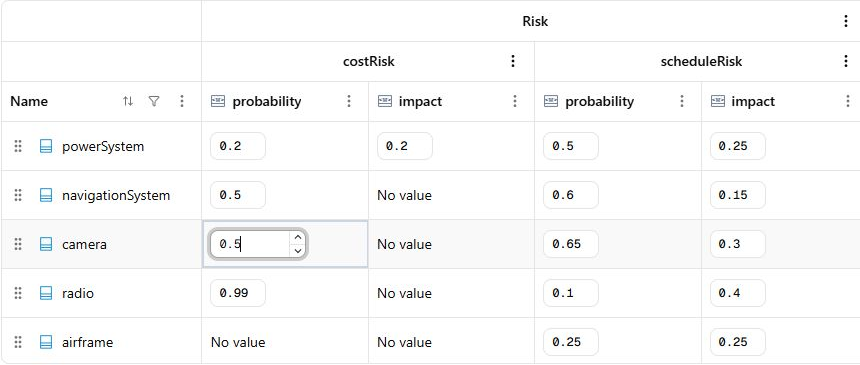
Check: the table and the same element’s Metadata inspector show the saved value.
If a cell has multiple applications, select the intended application. For a shared application, Edit shared application changes it for every element it annotates; Make independent copy lets you change this element’s copy.
If an option is missing
- Definition absent from Add Column: select Metadata, clear the search, and check that the supplying library or model is loaded. For Risk, check SysML Metadata Library using the installation checks.
- Only the parent field is visible: expand its arrow to reach nested fields.
- No Apply metadata button beside a numeric cell: entering its first supported numeric value can apply metadata directly on Enter. A guided editor handles additional required fields or other representations.
- A required field prevents saving: complete it in the same draft, then choose Save value.
- No editor or a read-only cell: check model and row editability and the availability of the source declaration. Imported elements do not offer the same editing controls.
- A value is rejected: correct the validation message. Risk probability values use the 0–1 range. If another edit changed the context, cancel and reopen the cell before retrying.
Return to Tables for row membership, searching, filtering, and CSV export, or see Attributes and units.