
Actions
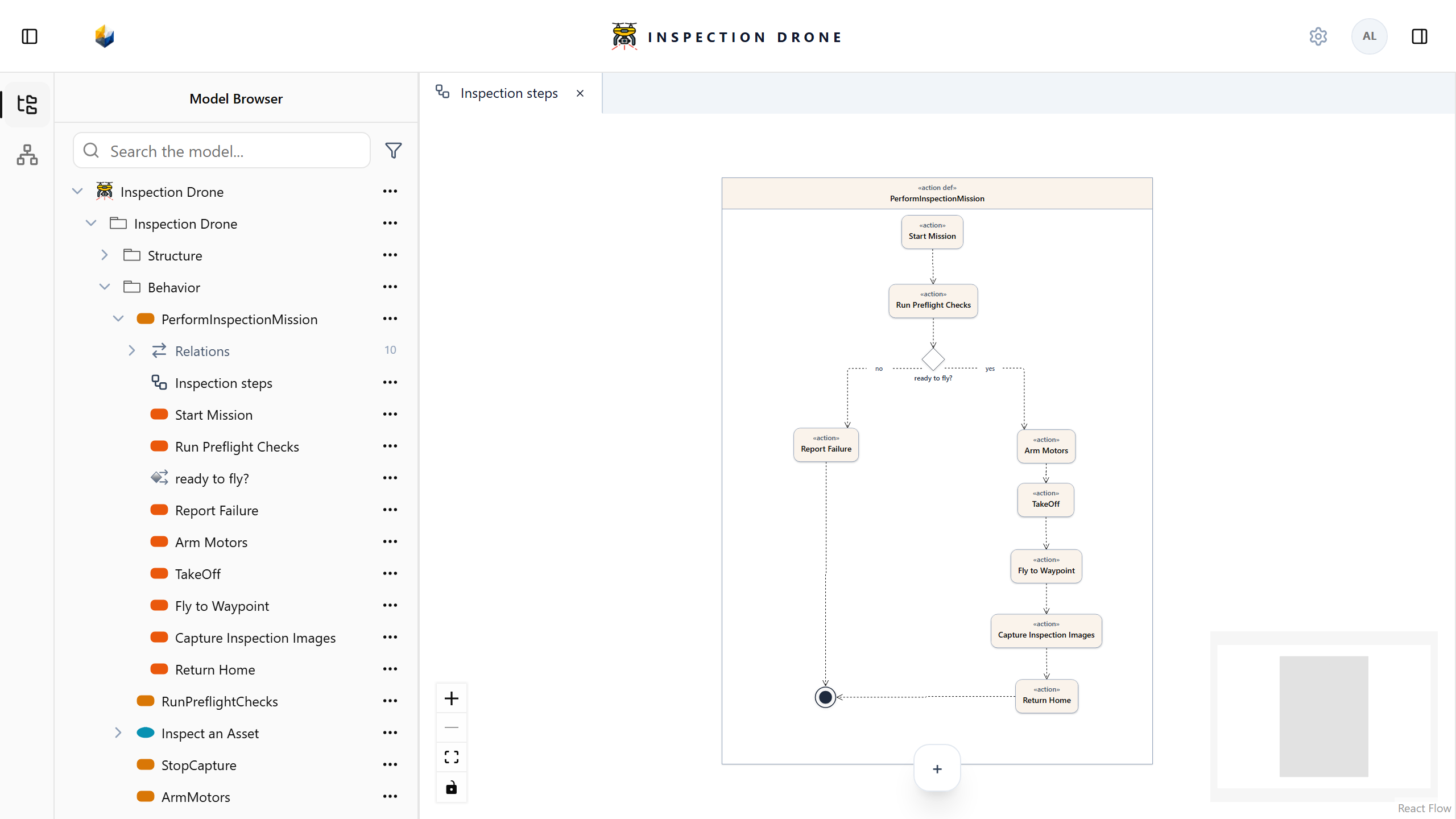
Actions describe work. An ActionFlowView presents actions owned by an action definition and the successions that order them.
What you need
Use an editable model and a package to organize the behavior. If needed, create a package using Create Element → package. The following steps create the action definition, action usages, and view.
1. Prepare the actions and Diagram
- Open the package’s actions menu and choose Create Element → action def.
- Enter a name for the process you want to describe and press Enter.
- Open that definition’s actions menu and choose Create Element → action.
- Name the first step, then repeat from the same definition’s menu for the following steps and alternatives.
- From the action definition’s menu, choose Create View → ActionFlowView, name the view, and open it.
- Drag the existing actions from the Model Browser into its frame and arrange them in the intended order.
Check: the actions are siblings beneath the action definition and appear inside the view’s frame.
If ActionFlowView is missing, use the action definition’s menu rather than the package’s. See view availability if the kind remains unavailable.
2. Connect the first sequence
- Choose Select in the Diagram toolbar and click the action that should occur first.
- Choose succession in the small toolbar beside the selected node. Hover over an icon to read its name.
- Click the existing action that should follow it.
Check: a directed succession connects the intended source and target. Select the line to inspect its endpoints.
If succession is missing, check that you selected an action node in a static ActionFlowView and that the model is editable.
3. Add the decision and both branches
Prepare an action for each alternative path if they do not yet exist.
- Open Create in the Diagram toolbar. Use the + control if the toolbar is collapsed.
- Choose decision and click inside the frame where the sequence should branch.
- Return to Select, click the diamond, and give it a meaningful name in the inspector.
- From the action preceding the decision, use succession to connect to the diamond.
- Select the decision, choose succession, and click the action beginning one alternative.
- Select the new line and name it to describe that alternative.
- Repeat from the decision to the action beginning the other alternative.
Check: the decision has the intended incoming and outgoing successions. Inspect each line to confirm which alternative it reaches.
Naming a line, for example yes or no, labels an alternative. It does not create an evaluated Boolean condition. Use documentation to explain the decision’s intent.
If decision is unavailable, check the view kind and owner. To connect existing nodes, start with the source’s succession tool and click the target; clicking empty space can start creating a new target instead.
4. Complete the paths
- Create and present any remaining action steps under the same definition.
- Use succession to connect each path in its intended order.
- Open Create, choose done, and click inside the frame.
- Return to Select and connect each final action to the done node using succession.
Check: each intended branch reaches completion. The view permits one done node; reuse it if one already exists. A named action at the start of a sequence remains an ordinary action, distinct from control nodes.
Add inputs and outputs
First prepare a payload type; Flows explains how to create an item definition.
- Select an action and expand Parameters in its inspector.
- Choose Add action parameter.
- Enter a Parameter name and choose in or out in Parameter direction.
- Choose Set type for new parameter and select the intended type.
- Choose the Create action parameter checkmark.
Check: the parameter appears under the selected action. If the control is missing, select the action itself and check model editability.
Adding a succession does not automatically create a payload flow between parameters. These controls record model behavior; they do not execute the modeled process.
Continue with States to describe operating situations and associate actions with them.

