
Flows
A flow describes something transferred between endpoint features. Its routes identify the source and target; its payload describes the transferred content.
What you need
Use an editable model with two parts and a connection between them. Parts explains creating parts; Connections and interfaces explains connecting them.
Each connection end must provide a reachable item, attribute, or reference feature suitable for the transfer. The following steps prepare a pair of item features. Reuse existing compatible features when your model already has them.
1. Prepare compatible endpoint items
- Open a package’s menu and choose Create Element → item def. Give the payload type a descriptive name.
- Open the source part’s menu and choose Create Element → item. Name the feature representing the transferred content.
- Select that item, choose Set Definition, and select the item definition you prepared.
- Create an item under the target part.
- Assign that target item the same definition using Set Definition.
Check: the items belong to opposite ends of the connection and use the same payload definition. Two definitions with matching names are not the same type.
These ordinary item usages can retain their default undirected direction for this setup. For existing directed features, compatibility must also match the intended source and target direction.
If item is unavailable, use the connected part’s menu. If the type is absent from Set Definition, check that it is an item def rather than an item usage.
2. Add the flow
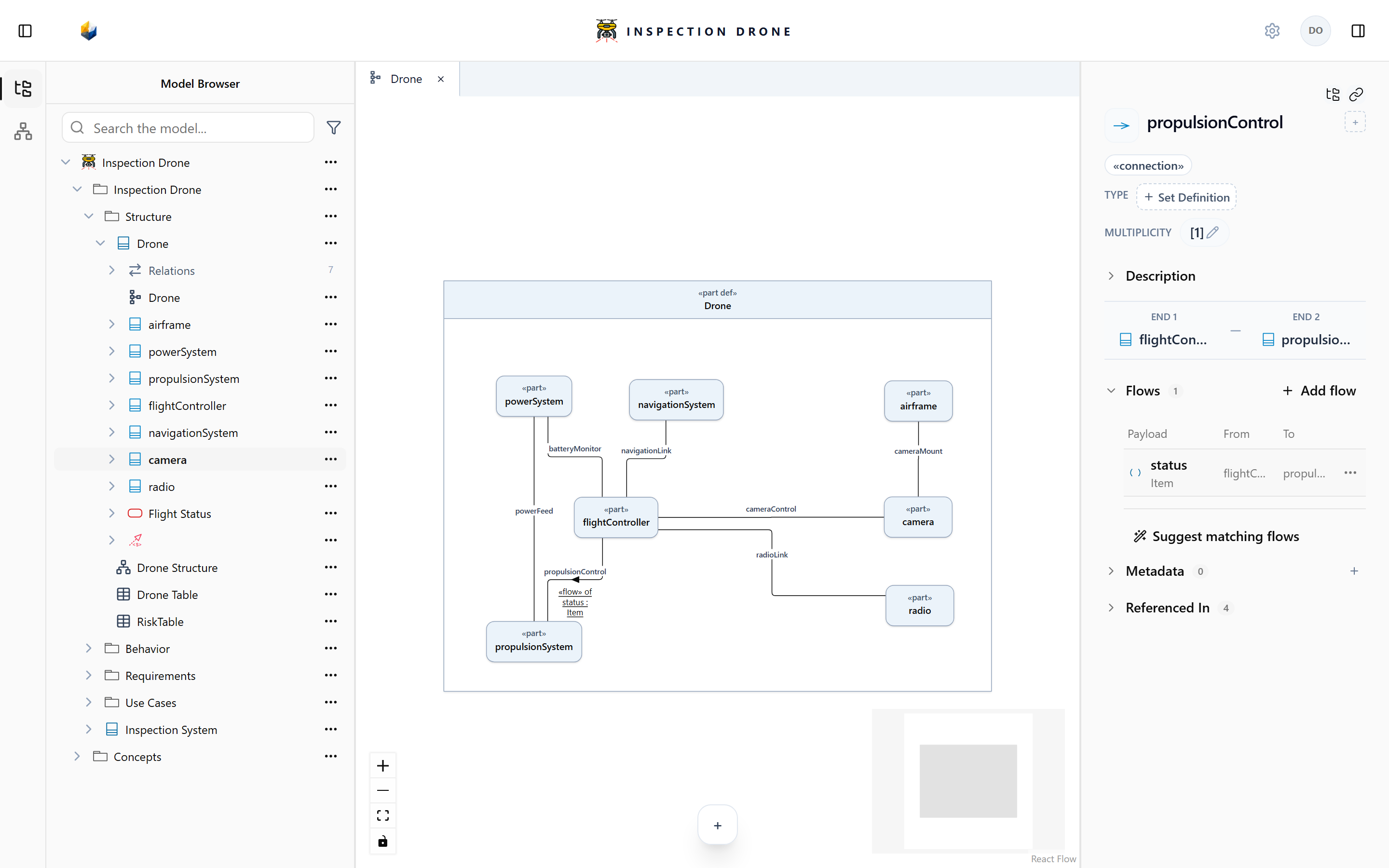
- Select the connection in a Diagram or beneath its owner’s Relations in the Model Browser.
- Check its endpoints and expand Flows in the inspector.
- Choose Add flow.
- Open From and select the intended feature route through the source part.
- Open To and select the compatible route through the other part. To becomes available after From is selected.
- Review the payload preview. From endpoints uses the type derived from the endpoints.
- Choose Save flow.
Check: a flow row appears on the connection. Its From and To routes identify the intended features, and its payload has the expected type. Re-select the connection to review the saved row.
If Add flow is missing, select the connection itself in an editable model. The Flows section applies to connections and interfaces, not action successions.
If an endpoint or Save flow is unavailable
Use Show unavailable in From or To to include disabled candidates. Read the reason shown beneath a route.
- Missing feature: check ownership and clear the picker search. Creating a part-to-part connection does not create its nested items.
- No type or type mismatch: assign compatible endpoint types. Using the same definition on both items is one way to prepare a compatible pair.
- Direction mismatch: directed routes need an out or inout source and an in or inout target. A pair of ordinary undirected items is also supported; mixing a directed feature and an undirected one does not form that pair.
- Same connection end: select a target under the other connected part.
- Payload constraint mismatch: an explicit payload type must satisfy both endpoint types. Check the endpoint-derived preview before adding a constraint.
- Route already exists: inspect the existing flow rather than adding a duplicate.
Use Retry choices if candidates fail to load. If the connection changed during editing, retain any text you need, choose Close and reload flows, and reopen the draft.
Edit the payload
Open the saved flow row’s actions menu. Edit flow changes its routes; Edit payload edits payload details.
Enter the intended payload name, review its type, and choose Save flow.
Check: the row retains your payload details and the correct routes. Naming the payload does not rename the source or target feature.
If edit controls are missing, check edit access and inheritance. Edit an inherited flow in its declaring definition.
A flow records a modeled transfer; it does not send commands to real hardware. An action succession describes ordering rather than transferred content.

